Social Icons

Pages

Saturday, 16 August 2014

Subway Surfer on Pc For Windows

How to Play Subway Surfer On Windows PC ?

Subway surfer is officially for IOS and Android users but today i will show you how to play it on windows easily. Just follow the below simple steps.
1: Download Intel Appup Software By Clicking HERE
2: After downloading the setup, Install it on your system by running the .exe file.
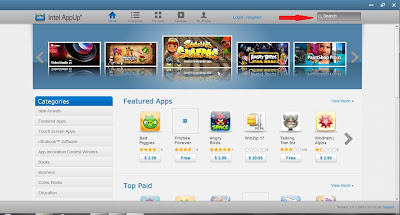
 3: Now run the software and make sure that you are connected to internet as it will download the game from web. You will see something like below pic.
4: Now search for Subway Surfer using the search box on top right corner. Refer the above pic red arrow.

5: Once you have landed on the Subway Surfer's App page in intell Appup, Click on " Download " Button located on the top left side of the screen just below the game icon.Your download will start. size of the game is 21.25 mb.
6: Download and install it, now You can start playing the game by click on the game icon. It will ask you to configure the game Which consist of Screen Resolution, Graphics Quality and input option.

How to Use Whatsapp on PC for Windows and Mac


Let us See How to Use Whatsapp On Windows and Mac PC.

To Run Whatsapp on Pc, We will Require Android Emulator, Android Emulator Helps us to Run Whatsapp on PC. 

Step 1: Youwave And Bluestack Are the Two Android Emulator which enable us to Run Whatsapp or any other Android App on PC.

Step 2: If you Go for Bluestack then Download and install it, then run the Bluestack and Click                 

on " Apps "
Then Click on the Tab " Social " and select " Whatsapp " and Install it.


Step 3: If you Go for Youwave which I am Using On My PC then just download  and install.
Now download Whatsapp.apk and move the downloaded file to PC directory.

             To Check PC's Directory, Open Youwave click on help > Instruction. Now move your           
    whatsapp.apk file in to that directory . Then Click on View then  Redraw Icons. 

Now You will see Whatsapp icon .


After Installing Whatsapp on Youwave or Bluestack you have to enter Mobile number which is not used earlier For Whatsapp account.  Then they will take 5 Minutes to verify and will send you Code.
Enter that code and thats all.

How to Set Up WiFi Connection with iBall Baton 150M Extreme Wireless N Router on BSNL DSL Modem

1) Turn off your DSL modem. 

2) Remove components from the box which includes the router, power adapter and the Ethernet cable.

3) Connect the power adapter to the router.

4) Remove the Ethernet cable connecting the DSL modem to the PC. Connect the Ethernet cable from the DSL modem to the WAN port in the router.
 
5) Connect the other Ethernet cable from one of the 4 slots on the router to the LAN port on your PC. Make sure the phone line is also connected to the DSL modem in case it is removed.

6) Now turn on the router and the DSL modem.

7) Once the setup is done, go to one of the web browsers like chrome, internet explorer, Firefox etc.

8) Type in "192.168.1.1" on the URL bar and hit enter.

9) The username and password is "admin".

10) Go to "Quick configuration" on the left side of the screen.
Click next, then click wireless client router and hit next.
 
11) Select PPPoE and hit next.
 
12) Username would be landline phone number and password is the C.A.No.(customer account number) which can be found on your phone bill.
 
13) On the next page you have to fill SSID and BSID, do this by clicking on survey and connect with any of the channels present.
 
14) Select security(if you want a password) called WPA-PSK, put in your password and the last bar with SSID would be the name of your WiFi. Put any name.
 
15) Hit next and then it will ask to restart your router. Restart it and ideally your internet and WiFi should work.